How to Make a QR Code for a Google Review Link?
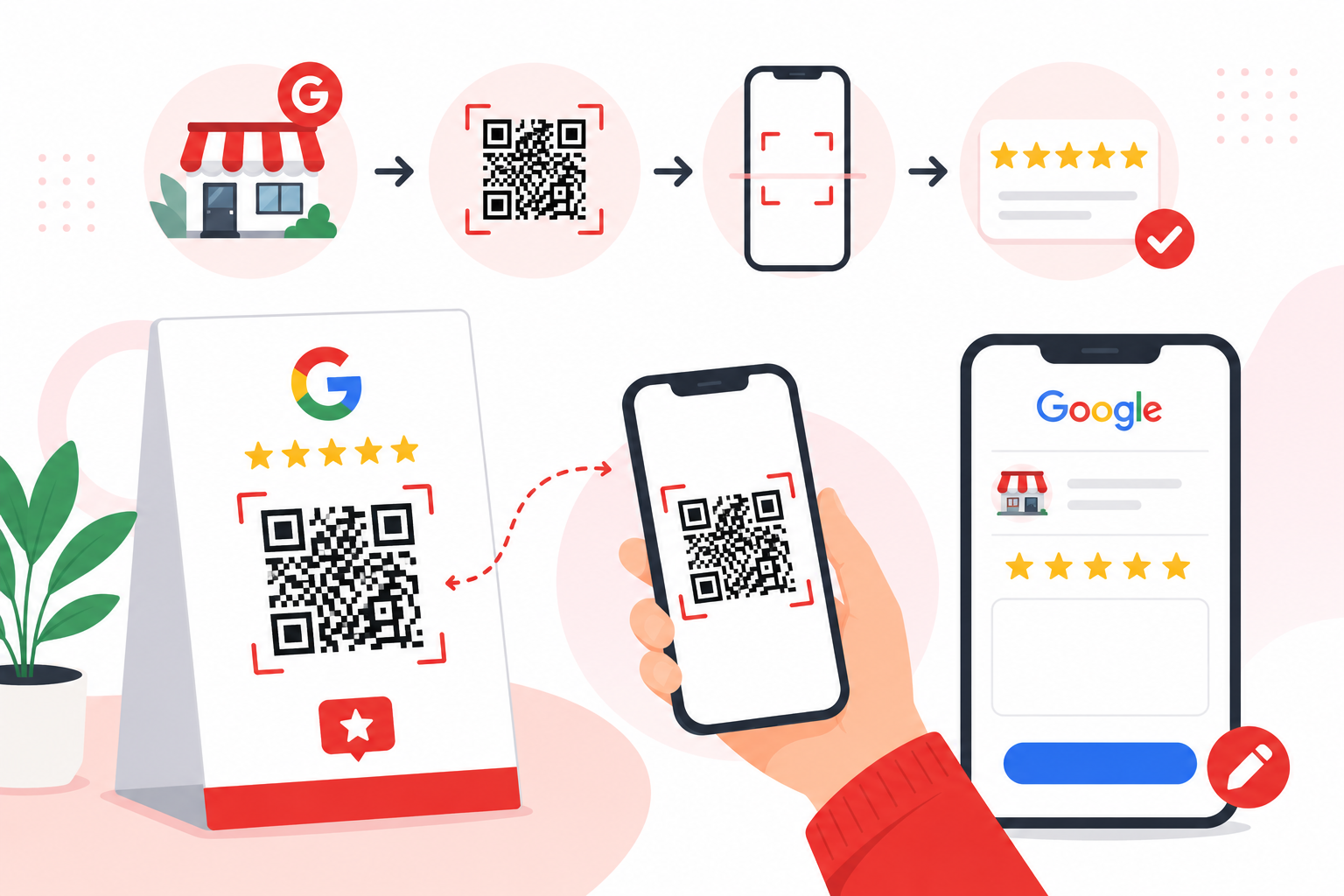
To make a QR code for a Google review link, open your Google Business Profile on a computer, select Read Reviews then Get more reviews, copy the review link (or right-click the QR code Google shows you and save it), then print it on receipts, cards, or table tents.
Key takeaways
- Google's Business Profile gives you a ready-made review link and QR code from the Read Reviews then Get more reviews screen (Source: Google).
- Reviews QR codes can only be generated on a computer browser, not on mobile devices (Source: Google).
- You can also paste the same review URL into any QR generator if you want a custom design, logo, or printable vector file.
- Do not offer payment, discounts, or free goods or services in exchange for reviews. That is "fake engagement" under Google's policy and will get reviews removed (Source: Google).
- Print the code at about 2 cm or larger for close-up scans, keep the blank Quiet Zone, and test on a real iPhone and Android before you print a batch.
What this QR code does?
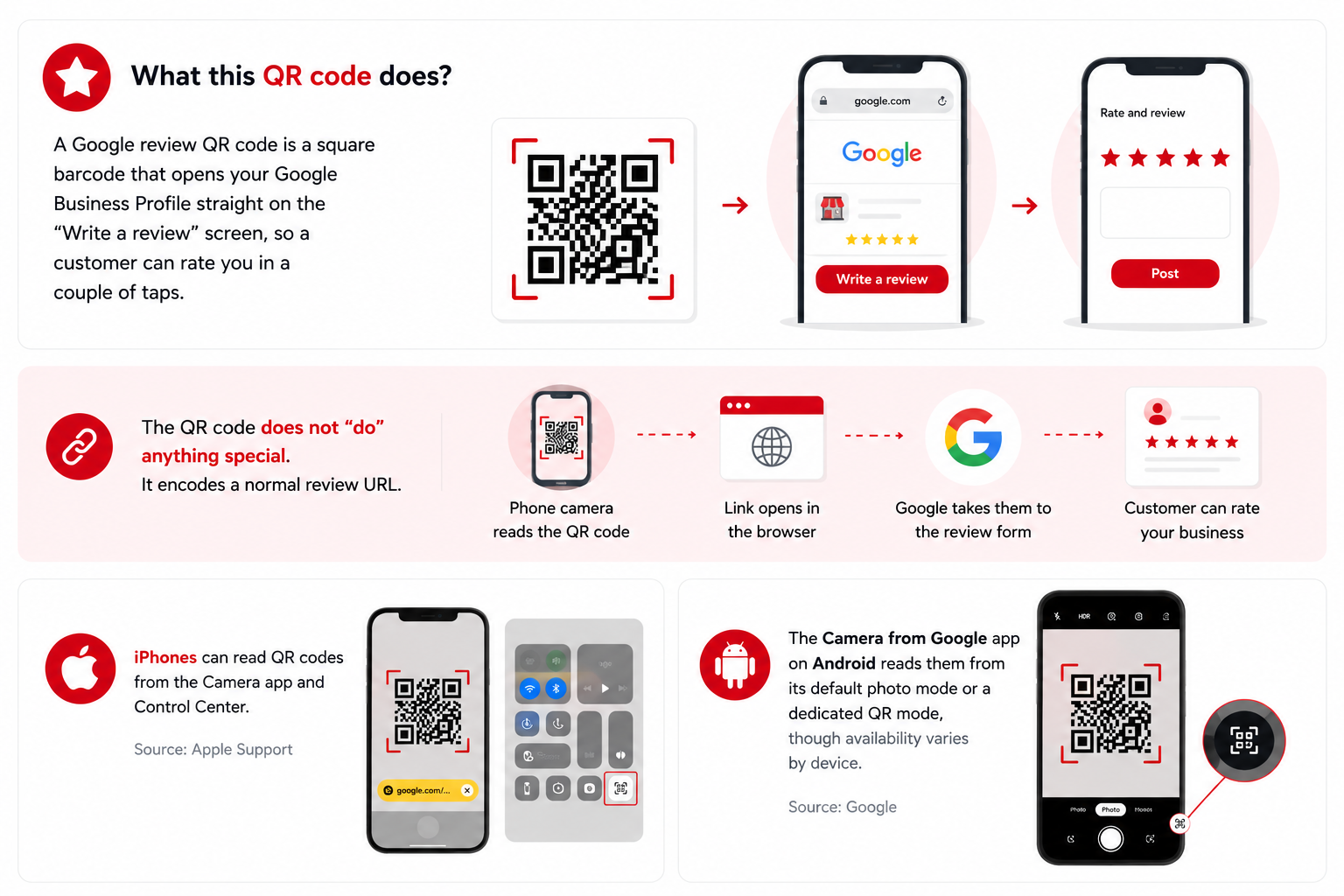
A Google review QR code is a square barcode that opens your Google Business Profile straight on the "Write a review" screen, so a customer can rate you in a couple of taps.
The QR code does not "do" anything special. It encodes a normal review URL. The shortcut is on the customer side: their phone camera reads the link, opens it in a browser, and Google takes them to the review form for your business. iPhones can read QR codes from the Camera app and Control Center (Source: Apple Support), and the Camera from Google app on Android reads them from its default photo mode or a dedicated QR mode, though availability varies by device (Source: Google).
Use Google's built-in review QR code
If you have a verified Google Business Profile, Google already gives you a review link and a QR code. Open it on a computer, not on mobile.
- Open your Google Business Profile on a computer browser at business.google.com and sign in (Source: Google).
- Find your business in search or Maps, then select Read Reviews, then Get more reviews (Source: Google).
- To copy the review link, select Copy. To save the QR code image, right-click the QR code and choose Save image as... (Source: Google).
- Test the link on your phone. It should open Google Maps or Search straight on the review form for your business.
Why not mobile? Google's help article states reviews QR codes can only be generated on a computer browser, not on mobile devices (Source: Google). If you only have a phone, copy the review link on mobile and paste it into any QR generator on a computer later.
Make one with a QR generator (more design control)
If you want a branded QR code (logo, colour, vector for print), grab your review URL from Google and paste it into a QR code generator.
- Get the review link from your Business Profile using the steps above. This is the URL the QR code must encode.
- Open a QR generator. A Canadian option is QR Code Generator; many other tools work too. Whatever you pick, confirm features and pricing on the tool's own site.
- Paste your Google review URL into the URL field and generate the code.
- Add light branding if you like: dark code on a light background, your logo in the centre at a modest size. Keep contrast high so the camera can still read it.
- Pick a sensible error correction level (see the table below). Higher levels survive grease, smudges, and a centre logo better.
- Download as SVG for print if offered. SVG stays sharp at any size. If you can only get a raster image, use a high-resolution PNG.
- Test on at least one iPhone and one Android before printing.
Level | Recovery capacity | Good for a review QR? |
|---|---|---|
L | About 7% | Clean environments only |
M | About 15% | Common default |
Q | About 25% | Good for counter cards and stickers with a logo |
H | About 30% | Highest tolerance for dirt and damage |
Source: DENSO WAVE, Error correction feature. https://www.qrcode.com/en/about/error_correction.html . Level M is the most commonly selected (Source: DENSO WAVE).
The QR format itself is free to use as long as you follow the published QR code standards. DENSO WAVE, the inventor, has waived its patent rights for standardized QR codes (Source: DENSO WAVE). You may still pay a generator for extras like dynamic codes or scan tracking, but not for the format.
Rules to follow (so reviews don't get removed)
Google does not allow incentives for reviews. Do not offer payment, discounts, or free goods or services in exchange for a review or for removing a negative one. That is "fake engagement" and will be removed (Source: Google).
The official Google help article on creating a review link calls this out directly: offering incentives in exchange for reviews is strictly prohibited (Source: Google). The Maps user-generated content policy adds that merchants cannot discourage or prohibit negative reviews or selectively solicit positive ones, and cannot pressure customers to leave reviews on the premises or require specific content (Source: Google).
Allowed | Prohibited |
|---|---|
Asking happy customers for an honest review of their real experience. | Offering payment, discounts, free goods, or free services for a review or for removing a negative one. |
Putting the QR code on receipts, thank-you emails, the end of a chat, or a printed card in your store (Google's own suggestions). | Selectively asking only happy customers, or filtering out unhappy ones (review gating). |
Saying "scan to leave a review" without any required content. | Asking for specific wording, a specific star rating, or naming a staff member. |
Posting your contact info on your own Business Profile. | Reviews from people with a conflict of interest, such as employees or family. |
Sources: Google Business Profile Help, "Create a Google link or QR code to request reviews"; Google Maps User Generated Content Policy, "Prohibited & restricted content."
Heads up: Repeated policy violations can lead to restrictions on your Business Profile (Source: Google). The short version: ask for honest reviews, do not pay for them, do not filter who you ask.
How big should the QR code be?
For a code scanned up close at a counter or table, aim for about 2 cm by 2 cm or larger. For a sign read from farther away, make the width about one-tenth of the scanning distance (the 10-to-1 rule).
The technical basis is the X-dimension, the width of the smallest single square (module) in the code. GS1, the global standards body, sets a permitted X-dimension range of 0.396 mm to 0.990 mm for codes scanned at retail point of sale. At the small end, a 29-module code plus the required blank margin works out to a minimum of about 14.65 mm by 14.65 mm (Source: GS1 UK, 2025).
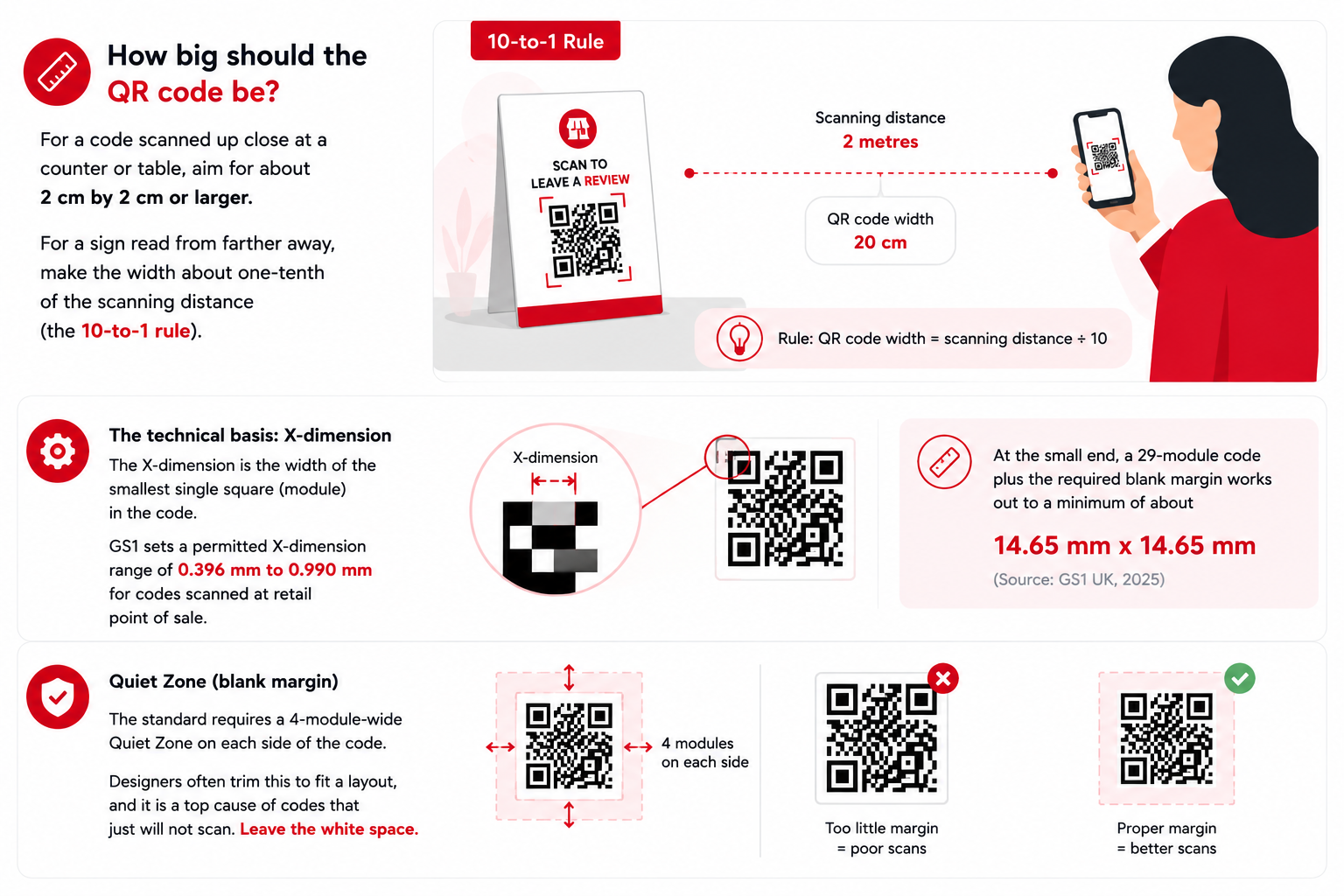
The standard requires a 4-module-wide Quiet Zone (blank margin) on each side of the code (Source: GS1 UK, 2025). Designers often trim this to fit a layout, and it is a top cause of codes that just will not scan. Leave the white space.
Where to print and place a Google review QR code?
Put it where the customer is already happy and not in a rush, with a short call to action like "Scan to leave us a Google review."
Google's own help article suggests including the link or QR code on receipts, in thank-you emails, at the end of a chat interaction, and printed and displayed in your store (Source: Google). A few practical placements that follow that spirit:
- The bottom of a printed receipt.
- A small acrylic stand at the till, beside a tip terminal or pickup counter.
- A sticker on the inside of a takeaway bag or pizza box.
- A line and code in your post-service email or SMS.
- A staff name-tag back, lanyard card, or a "thank you" card handed with the bill.
Avoid placing it under glare-prone glass, on a curved surface like a bottle or cup, or anywhere it ends up covered by another object during normal service.
Mistakes to avoid
Most failed review QR codes share four problems: a bad source link, a tiny or low-resolution print, missing margin, or wording that breaks Google's policy.
- Encoding the wrong URL. Always start from your Business Profile's review link, not a Maps listing URL you copied from a browser bar.
- Generating on mobile and getting nothing useful. Google's review QR code generator is computer-only (Source: Google).
- Printing from a low-resolution image. Use SVG or a high-resolution PNG.
- Removing the Quiet Zone or using low contrast.
- Offering anything in return for a review. Even a small discount is incentive under Google's rules (Source: Google).
- Asking only happy customers, or asking for a specific star rating or wording. Both are prohibited (Source: Google).
- No fallback. Some customers will not scan. Print the short review link next to the code, or include it in your email.
Static vs. dynamic QR codes for review links
A static QR code has the review URL baked into the pattern itself. A dynamic QR code stores a short redirect link you control, so you can swap the destination later without reprinting.
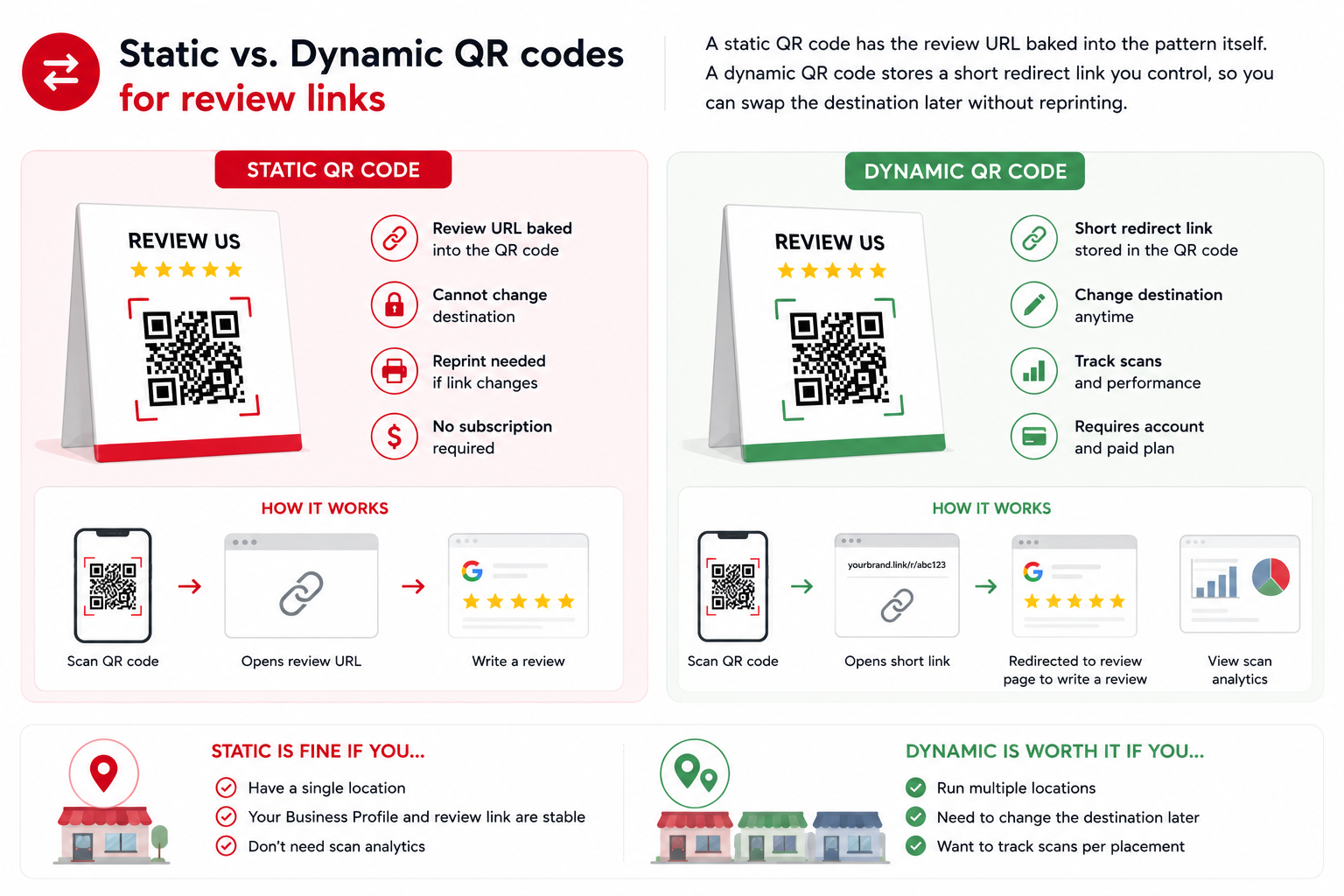
For a single-location business with one stable Business Profile, a static QR code pointing to the official review link is fine. If you run several locations, plan to switch the destination, or want to count scans per placement, dynamic is worth the paid plan.
A quick word on tools
You do not need a paid platform. Google's built-in option works, and the QR format is free under published standards (Source: DENSO WAVE). If you want a custom design, vector files for print, or scan tracking, a third-party generator helps. QR Code Generator is one Canadian option among several solid choices. Confirm features and pricing on the tool's own site before you commit.
Frequently Asked Questions
Does Google have its own review QR code generator?
Yes. On your Business Profile, choose Read Reviews then Get more reviews to see a sharable link and a QR code you can save. The feature is computer-browser only, not on mobile (Source: Google).
Do customers need an app to scan it?
No. Modern iPhones scan QR codes from the Camera app and Control Center (Source: Apple Support), and most Android phones scan them from the Camera from Google app's photo or QR mode, with some variation by device (Source: Google).
Can I offer a discount for a Google review?
No. Google prohibits offering incentives such as payment, discounts, free goods, or free services in exchange for posting, revising, or removing a review (Source: Google). Doing it can get reviews removed and your Business Profile restricted (Source: Google).
Can I ask only happy customers?
No. Selectively soliciting positive reviews, or discouraging negative ones, is prohibited under Google's review policy (Source: Google). Ask everyone, or ask no one.
How small can the QR code be?
For close-up scans at a counter or table, keep it at least about 2 cm wide. Smaller than roughly 1.5 cm gets unreliable. Sizing comes from the X-dimension, where GS1 sets a 0.396 mm to 0.990 mm range for retail scanning (Source: GS1 UK, 2025).
Should the QR code go on a receipt or on a sign?
Either works, and you can do both. Google suggests receipts, thank-you emails, end-of-chat, and printed displays in store (Source: Google). Pick the moment a customer is already happy and not rushed.
Sources
- Google Business Profile Help, "Create a Google link or QR code to request reviews." https://support.google.com/business/answer/16816815?hl=en
- Google Maps User Generated Content Policy, "Prohibited & restricted content." https://support.google.com/contributionpolicy/answer/7400114?hl=en
- Google Business Profile Help, "Business Profile restrictions for policy violations." https://support.google.com/business/answer/14114287?hl=en
- Apple Support, "Scan a QR code with your iPhone camera" (CA). https://support.apple.com/en-ca/guide/iphone/iphe8bda8762/ios
- Google Camera from Google Help, "Scan QR codes on Camera from Google." https://support.google.com/camerafromgoogle/answer/12033278
- DENSO WAVE, "Error correction feature." https://www.qrcode.com/en/about/error_correction.html
- DENSO WAVE, "About the patent." https://www.qrcode.com/en/patent.html
- GS1 UK, "How big should a QR code powered by GS1 be?" (last reviewed 2025). https://www.gs1uk.org/knowledge-hub/qr-codes-powered-by-gs1/how-big-should-a-qr-code-powered-by-gs1-be
Keep reading
How Realtors in Canada Use QR Codes to Sell Homes Faster
Canadian real estate agents use QR codes on signs, flyers, open house materials, mailers, and business cards to give buyers instant access to photos, virtual tours, and bookings. Dynamic QR codes can be updated after printing, track scans, and capture leads automatically.
How to Create a QR Code for Restaurants in Canada?
Creating a QR code for your restaurant takes about ten minutes. Put your menu online as a mobile-friendly web page, paste that link into a QR code generator, download the code as a high-resolution file, then print and test it on a few phones before it reaches a table.
How to Create a QR Code for a Business Card in Canada (2026)
Quick answer: To create a QR code for a business card, choose what the code should open, generate the QR code, customize the design, download it as SVG or high-resolution PNG, place it on your card at about 2 cm by 2 cm or larger, add a short call to action, and test it on multiple phones.